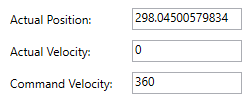
After we get the actual position and actual velocity from an axis, we need to display them. We use Text Blocks to display Actual Position and Actual Velocity labels, and Text Boxes to display their values. We bind ControlStatus.ActualPosition and ControlStatus.ActualVelocity properties with the Text attribute of the Text Boxes. To display new values in the Text Boxes, we use one-way binding by setting Mode to OneWay — when the source (actual values) is changed, the target (Actual Position and Actual Velocity Text Boxes) is updated, but the source won't be updated if the target is changed. Because these Text Boxes are only used to display data, we set IsReadOnly to true.
<TextBlock Grid.Row="0" Grid.Column="2" Text="Actual Position:"/>
<TextBox Grid.Row="0" Grid.Column="3" Text="{Binding SelectedAxis.ControlStatus.ActualPosition,
 Mode=OneWay}" IsReadOnly="True" TextChanged="TextBox_TextChanged"/>
<TextBlock Grid.Row="1" Grid.Column="2" Text="Actual Velocity:"/>
<TextBox Grid.Row="1" Grid.Column="3" Text="{Binding SelectedAxis.ControlStatus.ActualVelocity,
 Mode=OneWay}" IsReadOnly="True"/>
We use the same controls to display Command Velocity. To give a default value, we bind the variable CommandVelocityInput, which is set to 360, with the Text attribute of the Command Velocity Text Box. We can change the CommandVelocityInput value and use it to move an axis. To change and display a new value in the Text Box, we use two-way binding by setting Mode to TwoWay — both the source (CommandVelocityInput) and the target (Command Velocity Text Box) will update when each of them is changed. We set UpdateSourceTrigger to PropertyChanged, so the source will be changed immediately if we enter a new value in the Text Box.
<TextBlock Grid.Row="2" Grid.Column="2" Text="Command Velocity:"/>
<TextBox Grid.Row="2" Grid.Column="3" Text="{Binding CommandVelocityInput,
Mode=TwoWay, UpdateSourceTrigger=PropertyChanged}"/>