Configure Qt VS Tools
To compile the KINGSTAR Qt sample, we need to configure Qt VS Tools to use the Qt components and the modules we installed.
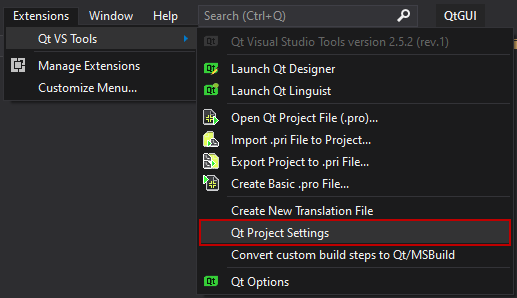
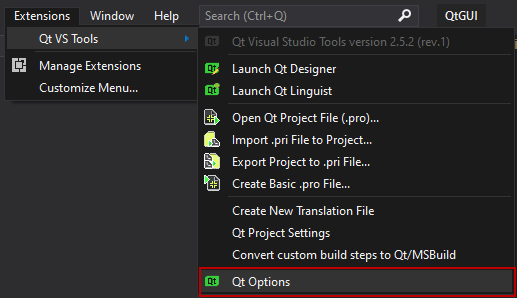
- Start Visual Studio 2019. On the Extensions menu, click Qt VS Tools > Qt Options.
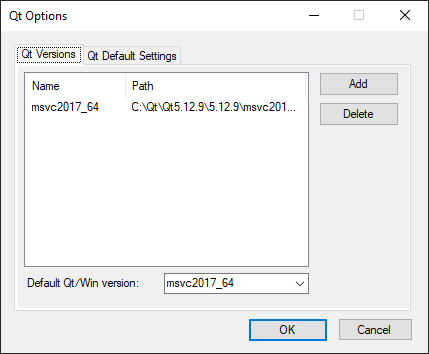
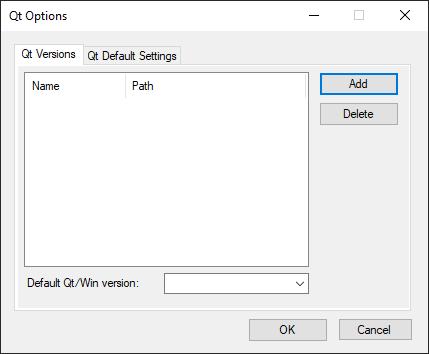
- In the Qt Options dialog box, on the Qt Versions tab, click Add.
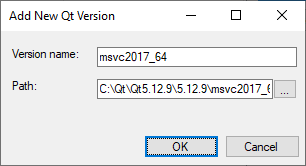
- In the Add New Qt Version dialog box, click ... to browse to the MSVC 2017 64-bit component we downloaded. The default path of this component is at C:\Qt\Qt5.12.9\5.12.9\msvc2017_64. After you choose the path, click OK.
- The path is added to the Qt Versions tab. Click OK.
- On the Extensions menu, click Qt VS Tools > Qt Project Settings.
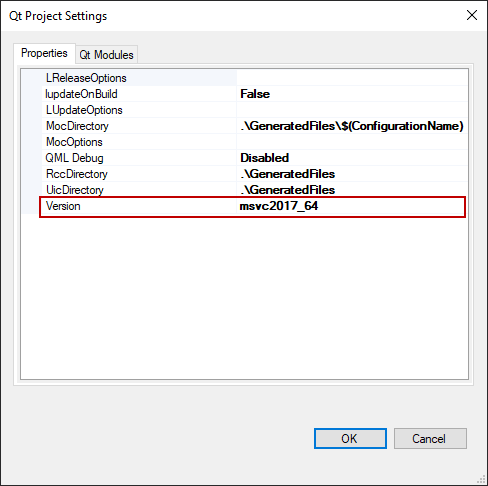
- In the Qt Project Settings dialog box, on the Properties tab, click the Version list and select msvc2017_64.
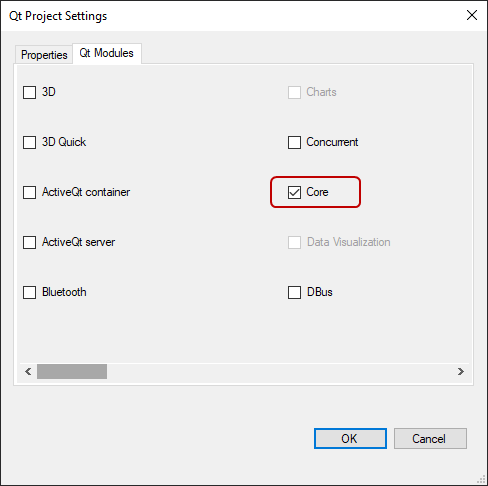
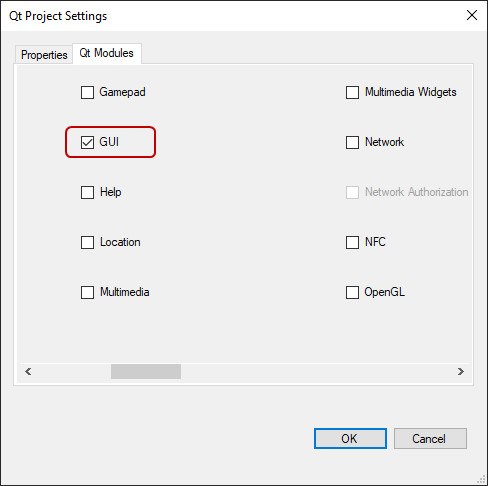
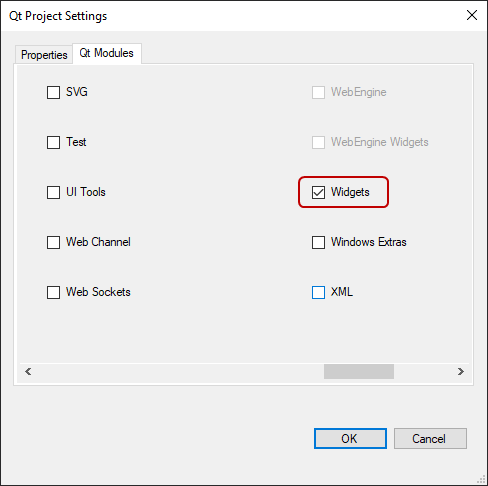
- On the Qt Modules tab, select the Core, GUI, and Widgets check boxes and click OK.
NOTE: If the component has not been found in the specified folder, Qt will remind you the path is wrong.