安装 Qt
Qt 包含了执行 KINGSTAR 范例程式所需的必要元件,因此执行范例前需先安装 Qt 。
Qt 将随时间更新,此说明使用 5.12.9 版本。
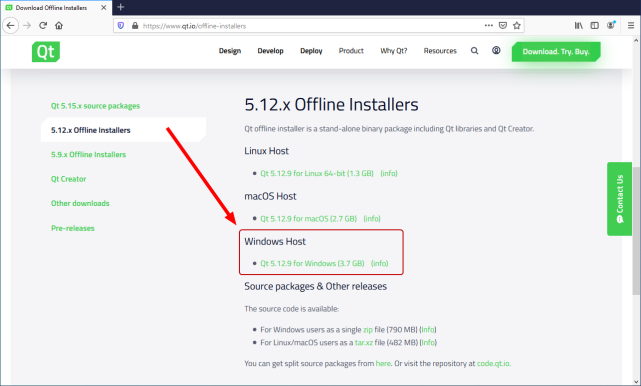
- Qt 提供线上与离线安装档,建议使用离线安装档,虽然离线安装档需要较长时间下载,其在安装过程较快速且不会受任何网路连接状态干扰。
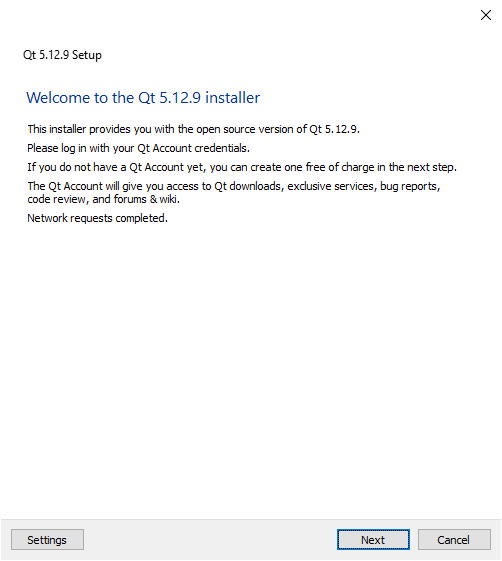
- 下载完成后,会看到名为 qt-opensource-windows-x86-5.12.9.exe 的档案,双击安装档启动安装 Qt ,在 Qt 5.12.9 Setup 窗格中的 Welcome to the Qt 5.12.9 installer 页面点击 Next。
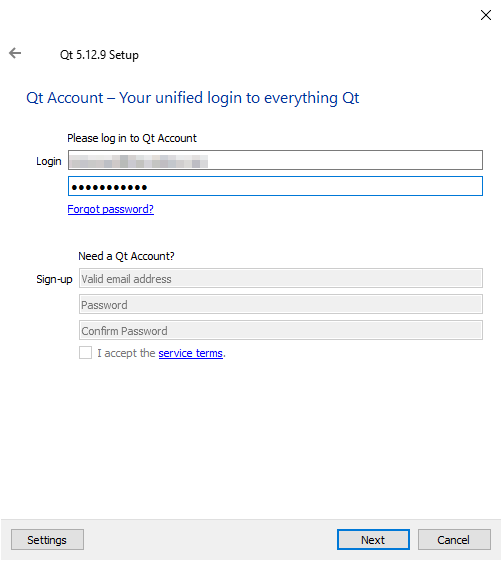
- 在 Qt Account – Your unified login to everything Qt 页面中需输入您的 Qt 帐户资讯以继续安装(若无帐户可至 https://login.qt.io/register 建立),完成后,请点击 Next。
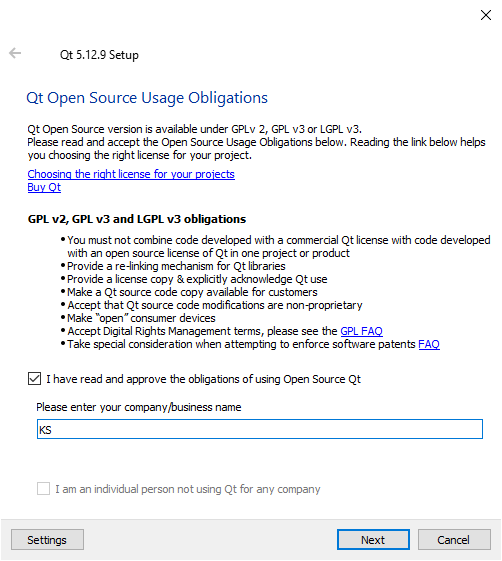
- 在 Qt Open Source Usage Obligations 页面中勾选 I have read and approve the obligations of using Open Source Qt 并输入您的公司或企业名称,若您为个人使用 Qt 则勾选 I am an individual person not using Qt for any company 并点击 Next。
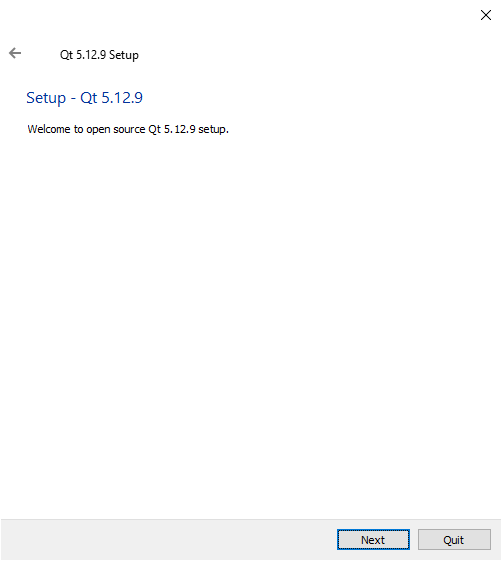
- 于 Setup - Qt 5.12.9 页面点击 Next。
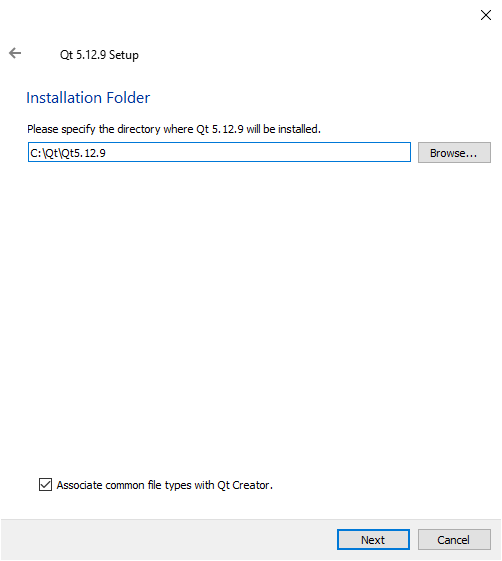
- 在 Installation Folder 页面中选择欲安装 Qt 的位置,您可以接受预设的安装路径,或点选 Browse 选择另一个位置,完成后,请点击 Next。
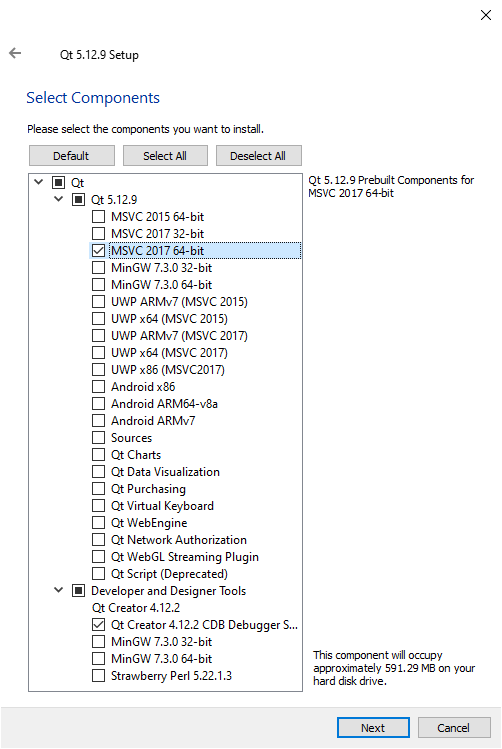
- 于 Select Components 页面中展开 Qt 5.12.9 并勾选 MSVC 2017 64-bit,于 Developer and Designer Tools 中请确认 Qt Creator 4.12.2 CDB Debugger Support 确实勾选。,完成后,请点击 Next。
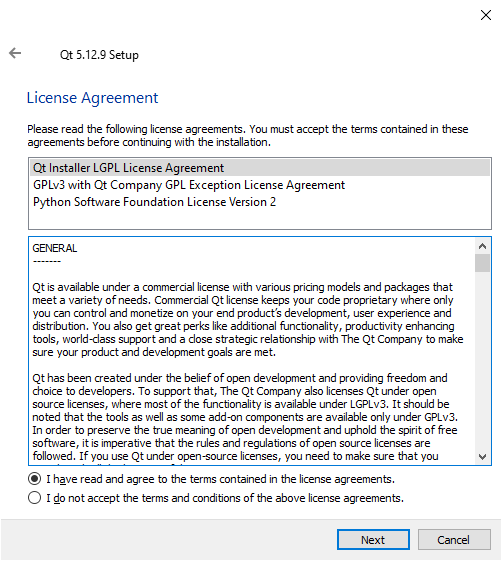
- 于 License Agreement 页面,勾选 I have read and agree to the terms contained in the license agreements,然后点击 Next。
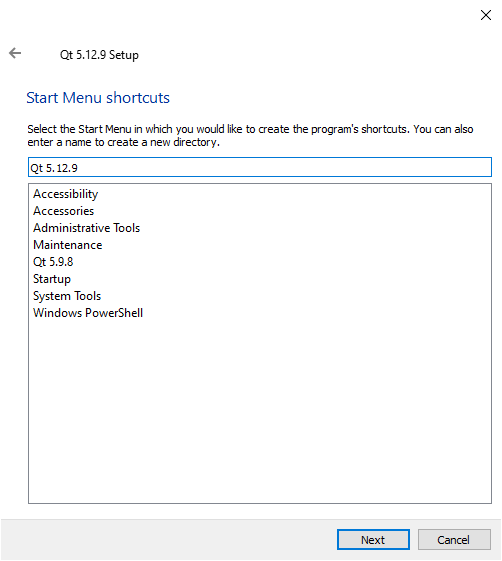
- 在 Start Menu shortcuts 页面,输入名称以在 Start
 选单中建立新的字典,或可使用欲设名称,完成后,请点击 Next。
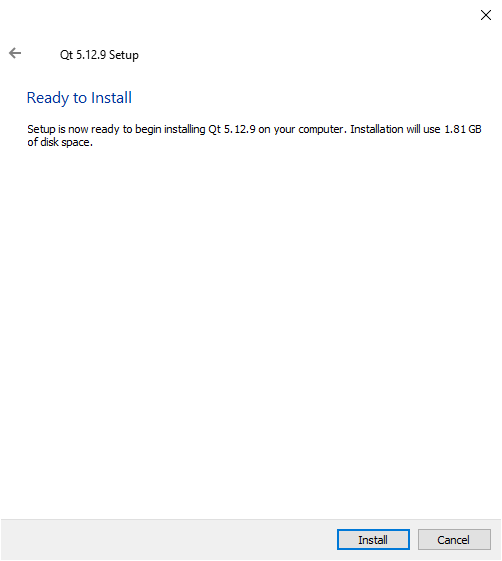
 - 在 Ready to Install 页面中点击 Install。
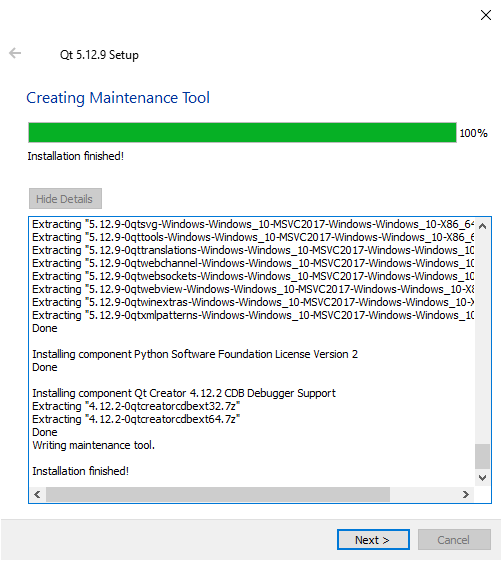
- 安装完成后,点击 Next。
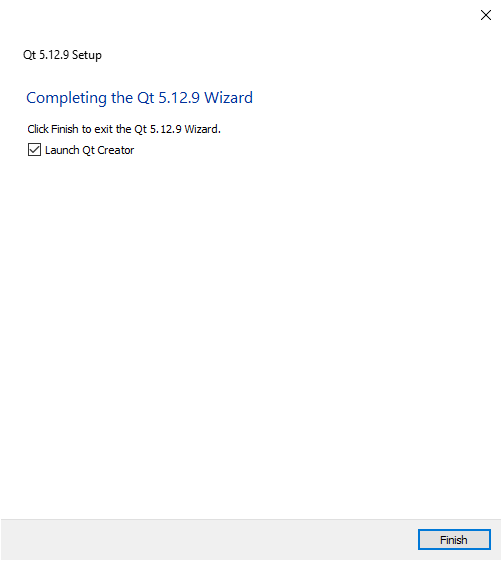
- 最后于 Completing the Qt 5.12.9 Wizard 页面点击 Finish。
离线安装档可至 https://www.qt.io/offline-installers 下载,于 5.12.x Offline Installers 中点选 Windows Host 下的安装连结。